The NASA version of PBS included software developed by NASA Ames Research Center, Lawrence Livermore National Laboratory, and MRJ Technology Solutions. This book, the Owner's Manual for the Portable Batch System, Professional Edition (PBS Pro), is intended to be your expert companion to the PBS Pro software.
Book organization
What is PBS Pro?
History of PBS
Why Use PBS?
Cross-system scheduling ensures that jobs do not need to be routed to a specific computer system. This allows PBS to fully function in environments where users do not have a consistent username across all resources they access.
About Veridian
Modern workload management solutions such as PBS include the features of traditional batch queuing, but offer greater flexibility and control than first-generation batch systems (such as the original UNIX batch system NQS). Users submit tasks or "jobs" to the resource management system, where they queue up until the system is ready to run them.
PBS Components
MOM is a reverse-engineered acronym that stands for Machine Oriented Mini-server.) MOM places a job in progress when it receives a copy of the job from a server. MOM also has the responsibility of returning the job's output to the user when instructed to do so by the server.
Defining PBS Terms
Since this is a policy, the distribution of jobs across export hosts is only a function of the Job Scheduler. One is applied by the job owner, another is applied by the PBS operator or administrator, and a third is applied by the system itself or the administrator.
New Features in PBS Pro 5.2
It explains new user-level features in this release, the different user interfaces, introduces the concept of a PBS.
Introducing PBS Pro
The Two Faces of PBS
User’s PBS Environment
Setting Up Your Own Environment
When a PBS task is running, the "exit status" of the last command executed in the task is reported to PBS by the task's shell as the "exit status" of the task. This can happen if your job's shell is the export host and you have a .logout there.
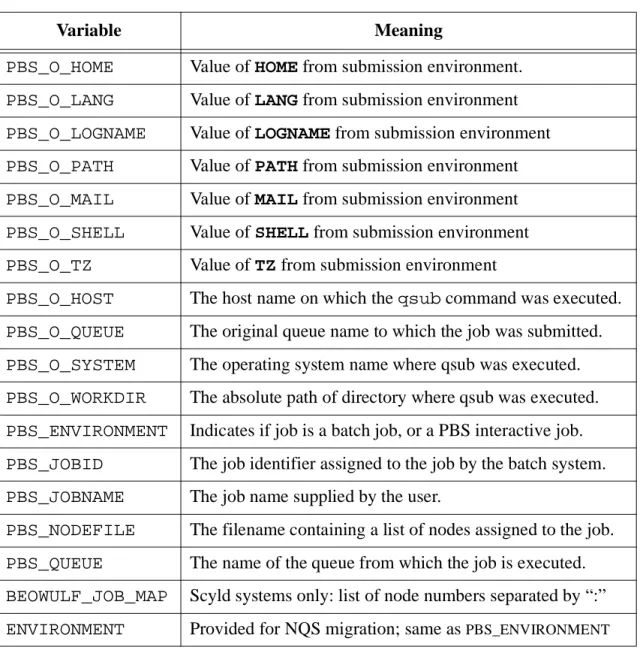
Environment Variables
Temporary Scratch Space: TMPDIR
New in PBS Pro 5.2 is an environment variable, TMPDIR, which contains the full pathname of a temporary "scratch" directory created for each PBS job. This chapter discusses the different parts of a PBS job and how to create and submit a PBS job.
A Sample PBS Job
It assumes that the rest of the script is the list of commands or tasks that the user wants to run. Finally, line 7 is the command line to execute the program we want to run: our example submarine simulation application, subrun.
Creating a PBS Job
In our example above, lines 2-4 specify the "-l" resource list option, followed by a specific resource request. Specifically, "-j oe" requests that PBS concatenate the job's output streams into a single stream.).
Submitting a PBS Job
In the previous example, we submitted the job script to PBS, which then read the resource directive contained in the script. In this case, 16 CPUs and 4 clock hours will override the values specified in the job script.
How PBS Parses a Job Script
User Authorization
PBS System Resources
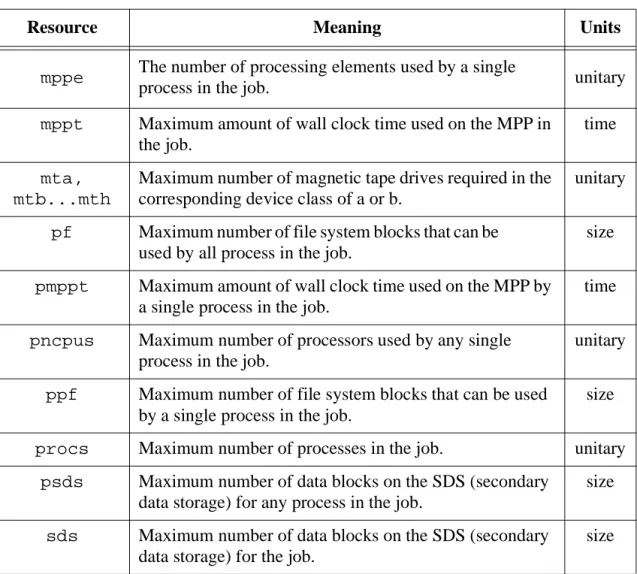
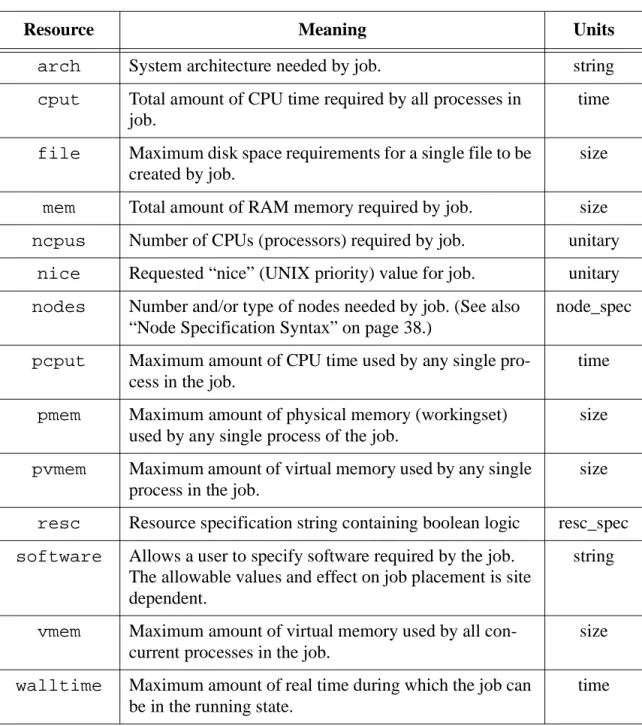
The table below lists the available resources that can be requested by PBS tasks on each system. On Cray systems running UNICOS 8 or higher, there are additional resources that can be requested by PBS tasks, as shown below.
Job Submission Options
- Specifying Queue and/or Server
- Redirecting output and error files
- Exporting environment variables
- Expanding environment variables
- Specifying e-mail notification
- Setting e-mail recipient list
- Specifying a job name
- Marking a job as “rerunnable” or not
- Specifying which shell to use
- Setting a job’s priority
- Deferring execution
- Holding a job (delaying execution)
- Specifying job checkpoint interval
- Specifying job userID
- Specifying job groupID
- Specifying a local account
- Merging output and error files
- Retaining output and error files on execution host
- Suppressing job identifier
- Interactive-batch jobs
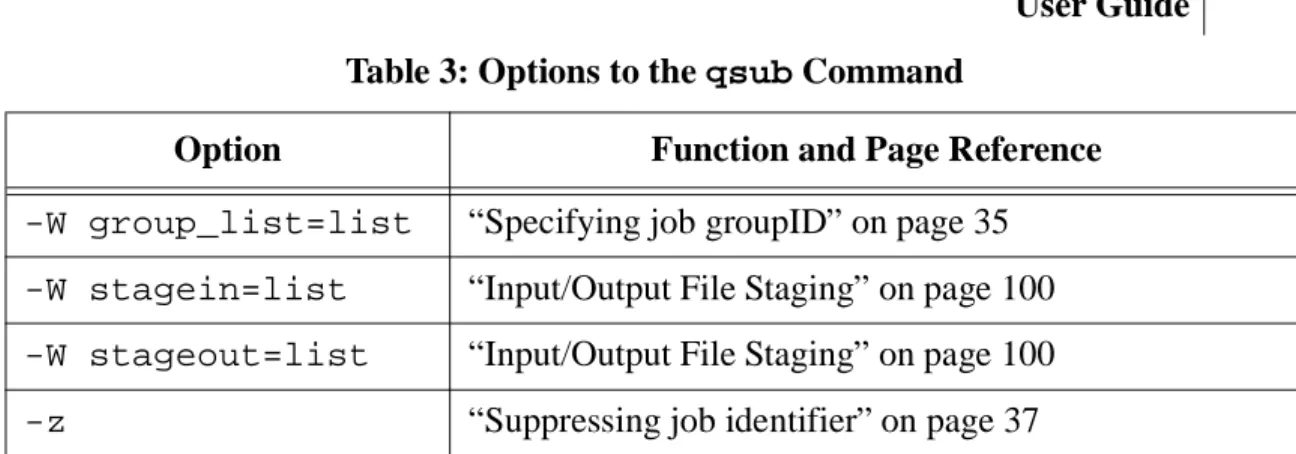
The "-u user_list" option defines the username under which the job should run on the execution system. The option "-W group_list=g_list" defines the group name under which the job should run on the execution system.

Node Specification Syntax
- Processes (Tasks) vs CPUs
- Interaction of nodes vs ncpus
- Order of Nodes in the Node File
- Exclusive Access to Whole Node
- NCPUS Request
- Time-shared vs Cluster Nodes
The total number of allocated (virtual) processors per node is the product of the number of processes (ppn) per node times the number of CPUs per process (cpp). Exclusive access is granted to the nodes regardless of the number of CPUs on the nodes.
Boolean Logic in Resource Requests
The comparison operators only have an impact on which node is selected for the job, they do not set limits on the job. However, the command operator is equivalent to separate specifications of -l mem=x and -l walltime=y to set the post limits.
Job Attributes
Shell_Path_List A set of absolute paths of the program to process the job's script file. User_List The list of user@hosts that determines the username under which the task is executed on a given host.
User’s xpbs Environment
Starting xpbs
Introducing the xpbs Main Display
- xpbs Menu Bar
- xpbs Hosts Panel
- xpbs Queues Panel
- xpbs Jobs Panel
- xpbs Info Panel
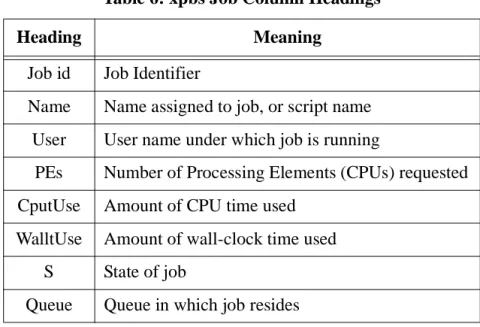
Total number of jobs currently queued in any state Que Number of jobs in queue state. Hld Number of jobs in the held state Wat Number of jobs in the waiting state.
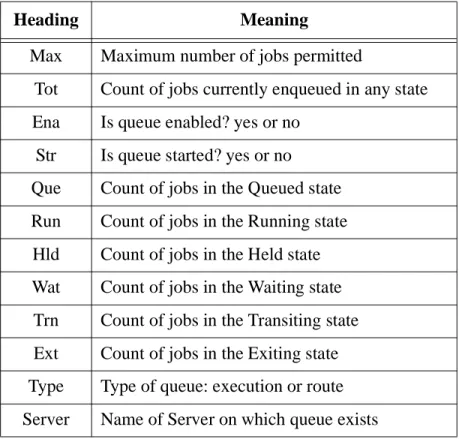
The INFO panel also includes a minimize/maximize button to display or iconify the Info panel.
Setting xpbs Preferences
Relationship Between PBS and xpbs
How to Submit a Job Using xpbs
Reset options to default Save the script to a file. Submit the job as a batch job. Alternatively, you can submit the job as an interactive batch job by clicking the Interactive button at the bottom of the Submit Job window.
Exiting xpbs
The xpbs Configuration File
Widgets Used in xpbs
However, if you move the mouse with the down button, the slider will drag and adjust the view as the mouse moves. Causes the view in the linked window to move up one less than the number of units in the window (ie, the part of the object that was displayed at the very top of the window will now be displayed at the very bottom).
The input widget only accepts values that fall within a defined list of valid values, and incrementing the valid values is done by clicking the up/down arrows.
The qstat Command
- Checking Job Status
- Viewing Specific Information
- Checking Queue Status
- Viewing Job Information
- List User-Specific Jobs
- List Running Jobs
- List Non-Running Jobs
- Display Size in Gigabytes
- Display Size in Megawords
- List Nodes Assigned to Jobs
- Display Job Comment
- Display Queue Limits
The "-Q" option to qstat displays the status of all (or any specified) queues at the (optionally specified) PBS Server. The "-r" option toqstat displays the status of all running tasks at the (optionally specified) PBS Server.
Viewing Job / System Status with xpbs
Likewise, to view detailed information about a particular queue (i.e. similar to the information produced by “qstat -fQ”), you can select the queue in question and then click the corresponding Detail button. You can view detailed information about each displayed task by selecting it and then clicking the Detail button.
The qselect Command
The qselect command selects only tasks for which the value of the Execution_Time attribute is related to the date_time argument by the optional operator. Only those jobs whose Hold_Types attribute exactly matches the value of the hold_list argument will be selected.

Selecting Jobs Using xpbs
Note that the job identifiers that match the selection criteria are returned. When you're done selecting, click the Select Tasks button above the HOSTS panel to xpbsrefresh the screen with the tasks that match your selection criteria.
Using xpbs TrackJob Feature
Using the qstat TCL Interface
Topics covered include: changing job attributes, holding and releasing jobs, sending messages to jobs, changing the order of jobs in a queue, sending signals to jobs, and deleting jobs.
Modifying Job Attributes
If any of the specified attributes cannot be modified for a job for any reason, none of the attributes of that job will be modified. To change a viaxpbs job attribute, first select the job(s) of interest and click on the edit button.
Deleting Jobs
From this window, you can set the new values for any property you have permission to change. To delete a job using xpbs, first select the job(s) of interest and then click the delete button.
Holding and Releasing Jobs
If the job is in the running state, the following additional action is taken to stop the job from running. Note that the status ("S") column shows how the job status changes using these two commands.
Sending Messages to Jobs
Sending Signals to Jobs
To signal a job using xpbs, first select the job(s) of interest and then click the signal button. From this window, you can click on one of the common signals, or you can enter the signal number or signal name you want to send to the job.
Changing Order of Jobs Within Queue
The two jobs must be located on the same server, and both jobs must be owned by the user. To change the order of two jobs using xpbs, select the two jobs and then click the order button.
Moving Jobs Between Queues
If the target operand describes both a queue and a server, qmove will move the jobs to the specified queue on the specified server. All subsequent operands are job_identifiers, which specify the jobs to be moved to the new destination.
Job Exit Status
Specifying Job Dependencies
This job can be scheduled to run after the job completes, with or without errors. If any of the preceding forms are used, referenced works must have the same owner as the work being submitted.
Delivery of Output Files
Input/Output File Staging
In the Submit Job window, in the miscellaneous options section (far left, center of the window), click the File Staging button. When the correct directory appears, simply click on the name of the file you want to stage (in or out).
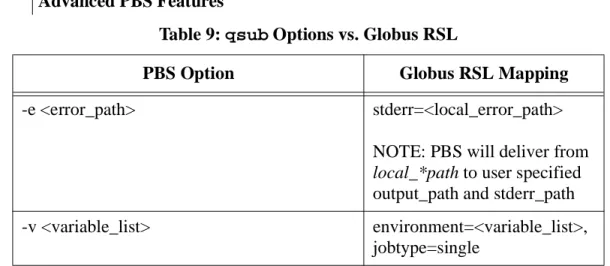
Globus Support
- Running Globus jobs
- PBS and Globusrun
- PBS File Staging through GASS
- Limitation
- Examples
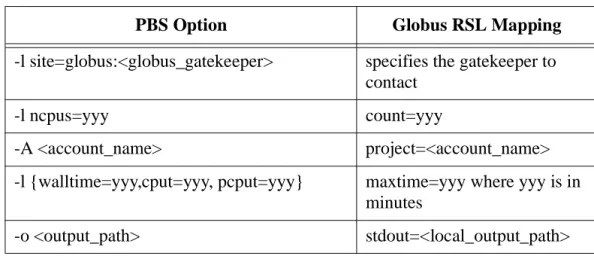
Make sure the pbs_server anodes file has entryserver-host:gl so that globus working status can be communicated to the server by pbs_mom_globus. PBS will take care of copying the local file on the executing Globus host to the exporting file ahost.
Advance Reservation of Resources
- Submitting a PBS Reservation
- Showing Status of PBS Reservations
- Delete PBS Reservations
- Reservation Job
- Identification and Status
- Accounting
- Access Control
When the reservation start time is reached, jobs in the queue will be started. If the reservation's end time and duration are the only times specified, this start time is calculated.
Running Jobs on Scyld Beowulf Clusters
After that period, the server must delete the resource reservation request. A site administrator can inform the server about those hosts, groups and users whose advance resource reservation requests should (or should not) be considered.
Running PBS in a DCE Environment
Parallel Jobs
Requesting Nodes
Wherefat,hippi,disk,andprime are examples of property names assigned by the administrator in the /var/spool/PBS/server_priv/nodesfile. The example above translates to the user requesting six regular nodes plus three "fat" nodes plus two nodes that are both "fat" and "hippie" plus one "disk" node, a total of 12 nodes.
Parallel Jobs and Nodes
The example above translates to the user requesting six regular nodes plus three "fat" nodes plus two nodes that are both "fat" and "hippie" plus one "disk" node, a total of 12 nodes. primeis appended as a global modifier, the global attribute, "prime" is added by the server to each element of the node specification. This is useful if one set of files must be created on each node by a setup process, regardless of the number of processes that will run on the nodes during the compute phase.).
MPI Jobs with PBS
This allows the user to request a different number of processes on the nodes and by setting the NPROCon number of the mpirun command to the total number of allocated nodes, start one process on each node. This is useful if one set of files needs to be created on each node by the installation process regardless of the number of processes that will be running on the nodes during the computation phase.).
Checkpointing SGI MPI Jobs
The miseroption appears to be the better choice as it avoids the socket in the first place. Both use sockets (and TCP/IP) to communicate, outside of work for interactive tasks and between programs in the MPMD case.
PVM Jobs with PBS
If the cproption is used, the checkpoint will work, but will be slower because the outlet must be closed first. Note that interactive jobs or MPMD jobs (more than one executable program) cannot be checked under any circumstances.
POE Jobs with PBS
OpenMP Jobs with PBS
The existing script is copied and PBS directives (“#PBS”) are inserted before each NQS directive (either “#QSUB” or “#Q$”) in the original script. If any of these are encountered in a script, the PBS spec will contain only the time portion of the NQS spec (ie #PBS -a hhmm[.ss]).
User