Accessibility and Usability of Online Labs:
Real barriers in a virtual world
J. Faias1, J. M. Ferreira2 and C. Leite3 1 Escola Superior Tecnologia da Saúde do Porto, Portugal 2 Faculdade de Engenharia, Universidade do Porto, Portugal 3
Faculdade de Psicologia e Ciências da Educação, Universidade do Porto, Portugal
Abstract—This paper was produced within the framework
of the Labs-on-the-web project, funded by the Portuguese Ministry of Science, Technology and Higher Education, as part of the Science and Innovation Operational Program (POCI 2010). We intended to verify if the online access to the workbenches designed with the NI LabVIEW platform respected the accessibility and usability standards, so that students with disabilities could benefit from this emerging pedagogical tool. We found out that the virtual workbenches built under this project had several problems that compromise the use of this technology by students with special needs, expressly by those with visual impairments.
Index Terms— Online Labs, Web Accessibility, Usability,
Students with Special Educational Needs.
I. INTRODUCTION
Web access to labs is becoming more and more powerful considering the technology involved and its pedagogical advantages. The development of Internet technology makes it possible to build e-learning tools that are reshaping the landscape of educational services.
As an emergent educational resource in Engineering, an online lab addresses the remote delivery of practical contents, such as remote experiments, through the web. This resource may either be used as a support for e-learning courses in Engineering or Science, in the cases where on-campus lab work is not possible, or as a complement to face-to-face lab classes, allowing the students to repeat a given experiment remotely, without time restrictions. [1]
Beyond all the advantages we can think of when using this learning technology, there are accessibility issues that need to be considered. In the school year of 2005/2006, at the University of Porto there were 104 students identified as having Special Educational Needs (SEN), due to several conditions, from which we may highlight visual impairments and physical disabilities. And this number tends to increase, as there are about 600 students with SEN currently doing their High School studies, just in the area of Porto, according to the Regional Department of the Ministry of Education.
After understanding the potential of online educational resources such as remote and virtual workbenches to promote participation in practical sessions for students with SEN, it seems critical that both software developers
and designers could meet the accessibility requirements in order to avoid one more obstacle to participation.
Considering that online labs can positively influence the participation and autonomy levels of students with SEN, the aim of this paper is to present the results of the automatic web accessibility analysis of the remote / virtual workbenches built during the Labs-on-the-Web project, which uses a set of NI ELVIS + LabView platforms (http://www.ni.com/academic/ni_elvis/).
Before presenting the results of such analysis, we will briefly try to clarify concepts such as participation, web accessibility and usability, and their importance in the educational field. A section dedicated to online labs and how they can be used for educational purposes will then follow.
To produce the automatic analysis we used the
WebXACT tool available online by Watchfire at
http://webxact.watchfire.com, based on the Web
Accessibility Initiative guidelines. In this paper, we will
present the general analysis and the qualitative and accessibility results along with a short description of the impact, in practice, of some of them.
Our purpose was to identify the presence of accessibility problems, prior to an end product, in order to deliver a solution that may be useful to a broader population, among those attending laboratory classes in Sciences and Technology studies, at University level. Finally, we will present a short conclusion of this study.
II. ACCESSIBILITY AND USABILITY
A. Accessibility and Participation
The Web is an opportunity for unprecedented interaction for people with disabilities. For example, some disabilities limit the type of work a person can do. An accessible Web expands opportunities for communication, interaction, and employment for people with disabilities. [2]
The Web is being understood as an increasingly important resource in many aspects of life: education, employment, government, commerce, health care, recreation, and more. It is essential that the Web be accessible in order to provide equal access and equal
opportunities to people with disabilities. An accessible Web can also help people with disabilities to more actively participate in society. [3]
The World Wide Web Consortium, through the Web Accessibility Initiative, simply defines that Web accessibility means that people with disabilities can use the Web. More specifically, Web accessibility means that people with disabilities can perceive, understand, navigate, and interact with the Web, and that they can contribute to the Web.
The Web is an opportunity for unprecedented access to information for people with disabilities. In other words, the accessibility barriers to print, audio, and visual media can be much more easily overcome through Web technologies. For example, when the primary way to get certain information was go to a library and read it on paper, there were significant barriers for many people with disabilities, including getting to the library, physically getting the resource, and reading it. Even when all these elements are accessible, it is difficult for some people to get resources from a library. People with disabilities can have more effective and efficient access to information through accessible Web sites — in some cases, where there was essentially no access to them before.
In our study case, the main issue deals with the development of educational skills. These skills are traditionally developed by attending laboratory classes, where the manipulation of equipments and experiments are, sometimes, inaccessible for students with SEN. The possibility to use online complementary resources to develop the same educational skills is a great opportunity to contribute to inclusion and participation.
Figure 1. Interactions between ICF components [4]
Participation is defined as “involvement in life situations” by the World Health Organization (WHO) and it is currently understood as an important factor to promote health and wellbeing [4]. The same reference, when describing the social model that underpins this new perspective, says that “Disability is not an attribute of an individual, but rather a complex collection of conditions, many of which are created by the social environment. Hence the management of the problem requires social
action, and it is the collective responsibility of society at large to make the environmental modifications necessary for the full participation of people with disabilities in all areas of social life. The issue is therefore an attitudinal or ideological one, requiring social change, which at the political level becomes a question of human rights. For this model disability is a political issue”. When we talk about all areas of social life, we have to include Education at all levels. In our subject, we may understand a remote or online lab as an environmental modification that has all the potential to have a positive impact in several areas of social life, in particular as an educational tool. If so, we are also contributing to promote health and wellbeing, which are essential for the development of skills in all individuals.
If a website, whether as information, working, leisure, commercial or educational tool, doesn’t meet the accessibility criteria and/or is difficult to use, it becomes a source of frustration for those with special needs [5].
The concept of Web accessibility can therefore be characterized by the flexibility in the access to information and the possibility of interaction for users with some sort of disability or special needs, in what concerns to the navigation mechanisms, page design and presentation, use of software, hardware and environmental adaptation. All these factors should interact in a way that facilitates participation.
B. Usability
Usability is another concept linked to web use for people with disabilities or special needs. This concept characterizes the relationship between tools and its users. For a tool to be effective, it should allow users to perform significant tasks, in the best possible way.
Usability depends on several factors, such as how the software meets the users’ needs, if the users’ tasks are processed smoothly and if the application meets the users’ expectations.
This concept may be defined as the quality of the system that makes it easy to learn, easy to use, easy to
Body structures and functions Activities Participation Environmental factors Personal factors Health condition (disability or disease) TABLEI.
CHARACTERISTICS OF WEB USABILITYa
Characteristics Descriptor
Easy to learn
Can a user, that never visit the website, learn it to complete basic tasks?
Efficiency of use
How fast can an experienced user complete the tasks, once familiar with the website?
Memorization
If a user has already visited the website, can he recall enough to be more effective the next time? Frequency and
severity of errors
How many errors do users do when visiting a website and how severe are they?
Subjective satisfaction
Does the user get satisfaction from the visit to the website?
a Adapted from: Usabilities Studies: testing your website. 2006; available from
memorize and error tolerant. In other words, a usable website must be intuitive, provide information in a quick way, with the minimal number of operations possible and transmit a positive image about its organization [6, 7, 8, 9].
Nielsen defines five characteristics of web usability as shown in Table I [8]. The concept of usability complements the requisites of accessibility in order to make a website easy to use by people with special needs. It is easy for a user to get lost in a particular website or feel fatigue when scrolling along long pages with a lot of hyperlinks. To avoid such problems, especially when participation is in risk, web designers should consider the guidelines that explain and share the necessary knowledge about how to make websites accessible and usable for all. In the area of usability, the document Beyond ALT Text:
Making the Web Easy to Use for Users with Disabilities is
a reference and contains 75 guidelines [5].
In the area of accessibility, one may consider the Web
Content Accessibility Guidelines 1.0 as the main
international reference. It was developed by the World Wide Web Consortium (W3C), which is responsible by the world recommendations related to Web use. This document includes 14 guidelines or general principles about accessibility conception. Each guideline has one or more checkpoints that explain how the guideline applies in a specific area. Each checkpoint is assigned a priority level based on the checkpoint’s impact on accessibility [10]:
Priority 1 – a Web content developer must satisfy this checkpoint. Otherwise, one or more groups will find it
impossible to access information in the document.
Satisfying this checkpoint is a basic requirement for some groups to be able to use Web documents.
Priority 2 – a Web developer should satisfy this checkpoint. Otherwise, one or more groups will find it
difficult to access information in the document. Satisfying
this checkpoint will remove significant barriers to accessing Web documents.
Priority 3 – a Web developer may address this checkpoint. Otherwise, one or more groups will find it
somewhat difficult to access information in the document.
Satisfying this checkpoint will improve access to Web documents.
Satisfying priority levels determines the level of conformance. There are three levels of conformance [10]:
Conformance Level “A”: all priority 1 checkpoints are satisfied;
Conformance Level “Double-A”: all priority 1 and 2 checkpoints are satisfied;
Conformance Level “Triple-A”: all priority 1, 2 and 3 checkpoints are satisfied.
C. Assessing Accessibility and Usability
In order to determine if a given website was developed in a way that makes it accessible and usable by a large
group of users, including people with SEN, tests must be conducted. There are two methods to assess usability:
1. Heuristic evaluation conducted by experts or specialists using the usability guidelines which consist of a systematic inspection of the user interface design;
2. Practical tests with users.
Both methods have advantages and disadvantages. The first method is a quick way to identify errors and their causes. However the evaluator needs to have a high level of expertise in this subject, along with the ability to review web content, understand and produce recommendations. Also the subjectivity of the evaluation and the need to have three to five independent evaluators brings an added degree of difficulty.
In the second method (tests with users), the main advantages are related to a more precise and objective output and better ability to identify real problems experienced by the users. On the other hand, as disadvantages, it is much more time consuming, the costs involved are higher, and – although identifying the problems – it doesn’t show their causes and provide solutions.
The ideal assessment of usability combines both methods. Usability studies allow us to collect data about how users relate several pieces of information, search, choose, buy, talk, move forward and back in a website.
Accessibility is frequently evaluated in an automatic way, using tools such as Bobby, WebXACT and Web
Accessibility Visual Evaluator (WAVE) and/or by manual
revision based upon the Web Content Accessibility
Guidelines 1.0. If we want to test accessibility with a
group of users with special needs, it is recommended that we choose a group with different types and levels of disability, different levels of Web experience and using different types of assistive technologies [8, 11]. Usually, a certain set of tasks is given to the users’ group, or they are requested to navigate freely in the Web. At the end, the users’ opinions and their level of satisfaction are registered through interviews or questionnaires.
Automatic evaluation is quick, has a low cost and does not require an expert in the subject. However, it only detects potential accessibility problems (usually designated as “warnings”), related with the W3C guidelines, and so manual verification is needed.
Manual verification is more effective in the detection of accessibility problems to a large group of users, but it needs to be conducted by a web expert with skills in producing recommendations and solutions, making it more time consuming and more expensive [8, 11].
The accessibility tests with users with special needs are more effective in detecting problems, allowing the identification of some problems that sometimes escape when we’re just verifying the accessibility guidelines. The main difficulties in applying these tests are related to the selection of the users, building a group that is sufficiently representative concerning the type and level of disability, experience in Web use and limitations about assistive
Figure 2 Example of a remote lab built with LabVIEW software
technologies. Also, it turns out to be more expensive and time consuming.
III. VIRTUAL AND REMOTE LABS
The online labs made available to students via the
POCI 2010 Labs-on-the-web project include virtual
workbenches, in the form of simulated environments, and remote workbenches, built from real equipment and
devices. Virtual workbenches may be preferable for economic reasons, or whenever access to real devices brings no pedagogical benefit. Remote workbenches are recommended when the objective of the experiment consists of interacting with a physical device (e.g. to observe a given parameter), by safety / security reasons, or yet when the multidisciplinary nature of the experiment, or the proximity to real world conditions, make this alternative preferable. There are also cases where both types may co-exist, and other situations where it is possible to develop mixed-reality workbenches, where physical devices interact with simulation models in hybrid environments.
The use of this technology is not meant to replace the face-to-face educational experience, in a real lab setting. However, in a blended-learning context, online workbenches offer several advantages:
• If the students could not complete an assignment in the lab, they may complete it from any other place, at a time of their convenience (the assignment may also be repeated, in case of doubts or missing data; or executed before going to the lab, when preparing the real lab session).
• Safety and security are improved, since there is no risk of catastrophic failures.
• For cost / benefit reasons: Laboratory equipment is available even when the lab is closed.
• High schools, and other universities or companies, from home or abroad, may use the lab equipment.
Live video channels embedded into user interface panels enable the students to visualise experiments as they take place in the remote lab, while videoconferencing allows synchronous communication among students collaborating in any given experiment.
To design these online labs, the Labs-on-the-web project uses NI LabVIEW software. This software is based in a graphical dataflow language, which makes it very easy to use in different fields of application.
IV. REAL BARRIERS IN A VIRTUAL WORLD
A. Procedures
We used the Watchfire WebXACT tool to carry out an automatic analysis of the virtual workbench shown in Figure 2. Three reports were generated:
1. General analysis 2. Quality analysis 3. Accessibility analysis
The report also includes a fourth analysis concerning Privacy, which will not be used in this paper.
B. General analysis
The general analysis report shows warnings for the three levels of Priority. Priority 2 and 3 of the W3C WCAG indicate the occurrence of items that are not serious and don’t need to be addressed immediately, but also items with failures in a number of situations. Priority 1 of the W3C WCAG indicates the occurrence of items that are not serious and do not be addressed immediately.
C. Quality analysis
The quality analysis goes through a set of items, such as:
• Content Defects • Search and Navigation • Page efficiency • Browser compatibility • Custom quality standards
The report generated indicates one item with a broken link and one element in the webpage missing an Alt text. There were also issues about browser compatibility and spelling errors, but these were not considered serious.
D. Accessability Analysis
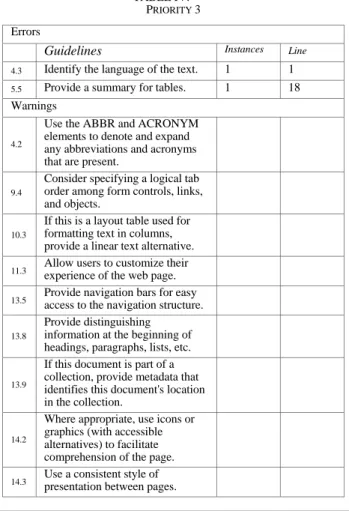
We consider this part of the report the most important for our purposes. In fact, the accessibility report has shown a great number of warnings that need to be addressed in order to make this virtual workbench accessible to students with SEN. These warnings are listed in Table II, Table III and Table IV.
Not many errors and warnings of Priority 1 were reported, but those that were detected can prevent students with specific SEN to access this virtual workbench and, therefore, turn this tool useless to them. As an example, students with visual impairments could not have any auditory feedback from specific graphics included in the online lab provided by the teacher. This means that a text equivalent for every non-text element (e.g., via “alt”, “longdesc”, or in element content) should have been provided.
Both errors indicated in the Priority 2 list, although not making the Online Lab inaccessible, make it difficult to use, again for visual impaired students.
The same conclusion can be derived from the Priority 3 list of errors and warnings. The 4.3 guideline, for example, recalls that server operators should configure servers to take advantage of HTTP content negotiation mechanisms (RFC2068, section 14.13), so that clients can automatically retrieve documents of the preferred language.
TABLE II. PRIORITY 1 Errors
Guidelines Instances Line 1.1 Provide alternative text to all images 1 38 12.1 Give each frame a title 3 21, 28, 33 Warnings
1.1
If an image conveys important information beyond what is in its alternative text, provide an extended description.
1 38
2.1
If you use color to convey information, make sure the information is also represented another way.
1 38
4.1 Identify any changes in the document's language.
5.1
If this is a data table (not used for layout only), identify headers for the table rows and columns.
1 40
5.2
If a table has two or more rows or columns that serve as headers, use structural markup to identify their hierarchy and relationship.
1 40
6.1
If style sheets are ignored or unsupported, ensure that pages are still readable and usable. 6.3
Provide alternative content for each SCRIPT that conveys information or functionality. 6.3
Make sure pages are still usable if programmatic objects do not function.
2 8, 42
7.1 Make sure that the page does not cause the screen to flicker rapidly. 8.1
Provide accessible alternatives to the information in scripts, applets, or objects.
2 8, 42
11.4
If you can't make a page accessible, construct an alternate accessible version.
14.1
Use the simplest and most straightforward language that is possible.
TABLE III. PRIORITY 2 Errors
Guidelines Instances Line Nº 3.2 Use a public text identifier in a
DOCTYPE statement.
3.4 Use relative sizing and
positioning, rather than absolute. 15
18, 20, 21, 27, 28, 32, 33, 37 Warnings 2.2
Check that the foreground and background colors contrast sufficiently with each other.
1 38
3.1
Where it's possible to mark up content instead of using images, use a markup language. 3.2
Make sure your document validates to formal published grammars.
5.3
Avoid using tables to format text documents in columns unless the table can be linearized.
5.5 If this is a data table (not used for layout only), provide a caption. 1 40
6.4
If objects use event handlers, make sure they do not require use of a mouse.
9.2
Make sure that all elements that have their own interface are operable without a mouse.
2 8, 42
10.1
If scripts create pop-up windows or change the active window, make sure that the user is aware this is happening.
2 8, 42
11.1
Use the latest technology specification available whenever possible.
12.2
Add a description to a frame if the TITLE does not describe its contents.
3 21, 28, 33
12.3 Group related elements when possible.
13.1
Make sure that all link phrases make sense when read out of context.
13.3
Provide the user with a site map or table of contents, a description of the general layout of the site, the access features used, and instructions on how to use them. 13.4 Provide a clear, consistent navigation structure.
CONCLUSION
The errors and warnings reported for this Online Lab show that it does not comply with all the automatic and manual checkpoints of the W3C Web Content Accessibility Guidelines, and requires corrections and manual verification by the Web Designer. This manual verification should clarify to which extent the software used, or the programmer, contribute to this conclusion.
Nevertheless, our purpose was to check if the online labs developed in the POCI 2010 Labs-on-the-web project facilitate the participation of students with Special Education Needs, or rather create obstacles to their education.
We suggest that an accessibility analysis should be made every time an online educational tool is in development, before the end product is finished, so that the Web can really be a window of opportunities for all.
Further studies should be made, in particular with the participation of students with SEN, in order to improve the benefits of this emerging educational tool.
REFERENCES
[1] A. Pester and G. R. Alves, “WebLabs in Education” Guest Editorial, in: International Journal of Online Engineering, vol. 3, No. 2, Guest Editorial, 2007.
[2] S. L. Henry (Ed.), “Social factors in develop a Web Accessibility Business case for your organization”, available online in
http://www.w3.org/WAI/bcase/soc, last update 2006.
[3] S. L. Henry (Ed.), “Introduction to Web Accessibility”, available online in http://www.w3.org/WAI/accessibility.php, last update 2007.
[4] WHO, “International Classification of Functioning, Disability and Health” Geneva, 2001.
[5] J. Nielsen, K. Pernice, Beyond alt text: making the web easy to use for users with disabilities. 2001 (serial online) 2007 March Available in URL: http://www.NNgroup.com/reports/accessibility. [6] J. Thatcher, P. Bohman, M. Burks, S. Lawton, B. Regan, S.
Swierenge et al. Constructing accessible web sites. 1ª ed. Birmingham: Glasshaus; 2002.M. Young, The Technical Writer's Handbook. Mill Valley, CA: University Science, 1989.
[7] Introduction to usability. Your online guide to usability resources. 2005 (serial online) 2005 Novembro – Dezembro. Disponível em: URL: http://www.usabilityfirst.com/intro/index.txl
[8] Usability Studies: Testing your website. 2006 (serial online) 2007 April. Available in URL:
www.edb.utexas.edu/multimedia/Usability%20Testing.pdf
[9] J. Nielsen, Designing web usability: the practice of simplicity. Indianapolis: New Riders Publishing; 2000.
[10] World Wide Web Consortium. Web Content Accessibility Guidelines 1.0. 1999 (serial online) 2007 May. Available in URL:
www.w3.org/
[11] T. Lang, Comparing website accessibility evaluation methods and learnings from usability evaluation methods. Peak Usability. 2003. Available in URL: http://www.peakusability.com.au/index.htm
AUTHORS
J. Faias is with the School of Health Technologies –
Polytechnic Institute of Porto, Praça Coronel Pacheco, 15 4050-453 Porto - Portugal (e-mail: [email protected]).
J. M. Ferreira is with the Faculty of Engineering –
University of Porto, Rua Roberto Frias s/n 4200-465 Porto - Portugal (e-mail: jmf@ fe.up.pt).
C. Leite is with the Faculty of Psychology and
Educational Sciences – University of Porto, Rua do Dr. Manuel Pereira da Silva, 4200-392 Porto - Portugal (e-mail: [email protected]).
FEUP’s Labs-on-the-web project is funded by the Programa Operacional Ciência e Inovação 2010 (POCI 2010) of the Portuguese Ministry of Science, Technology and Higher Education, with support from the European Social Fund.
TABLE IV. PRIORITY 3 Errors
Guidelines Instances Line 4.3 Identify the language of the text. 1 1 5.5 Provide a summary for tables. 1 18 Warnings
4.2
Use the ABBR and ACRONYM elements to denote and expand any abbreviations and acronyms that are present.
9.4
Consider specifying a logical tab order among form controls, links, and objects.
10.3
If this is a layout table used for formatting text in columns, provide a linear text alternative. 11.3 Allow users to customize their experience of the web page. 13.5 Provide navigation bars for easy
access to the navigation structure. 13.8
Provide distinguishing information at the beginning of headings, paragraphs, lists, etc.
13.9
If this document is part of a collection, provide metadata that identifies this document's location in the collection.
14.2
Where appropriate, use icons or graphics (with accessible alternatives) to facilitate comprehension of the page. 14.3 Use a consistent style of presentation between pages.
![Figure 1. Interactions between ICF components [4]](https://thumb-eu.123doks.com/thumbv2/123dok_br/18868894.931067/2.892.100.449.703.934/figure-interactions-between-icf-components.webp)