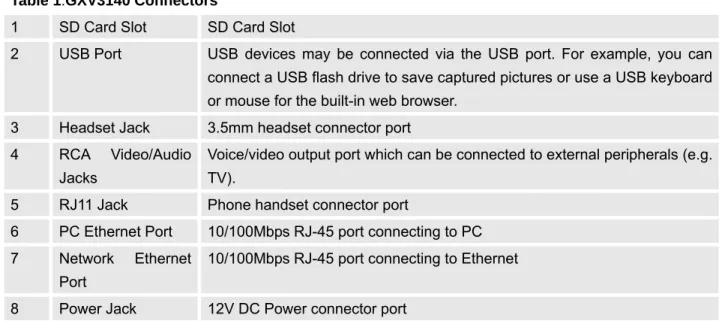
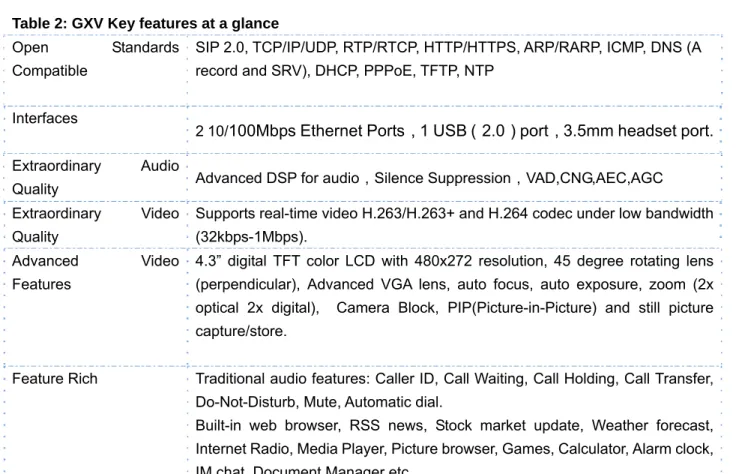
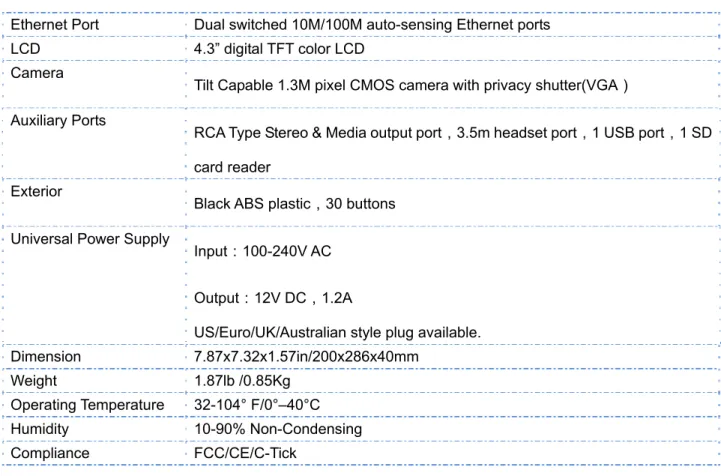
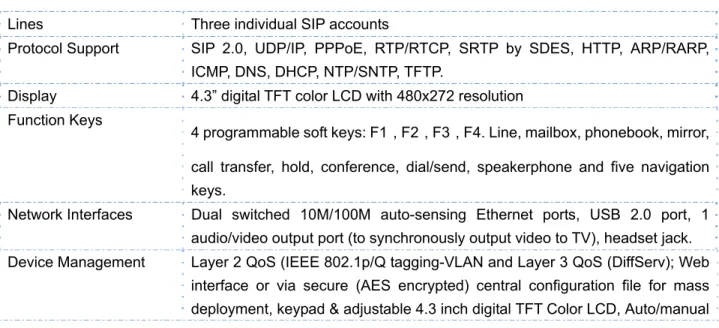
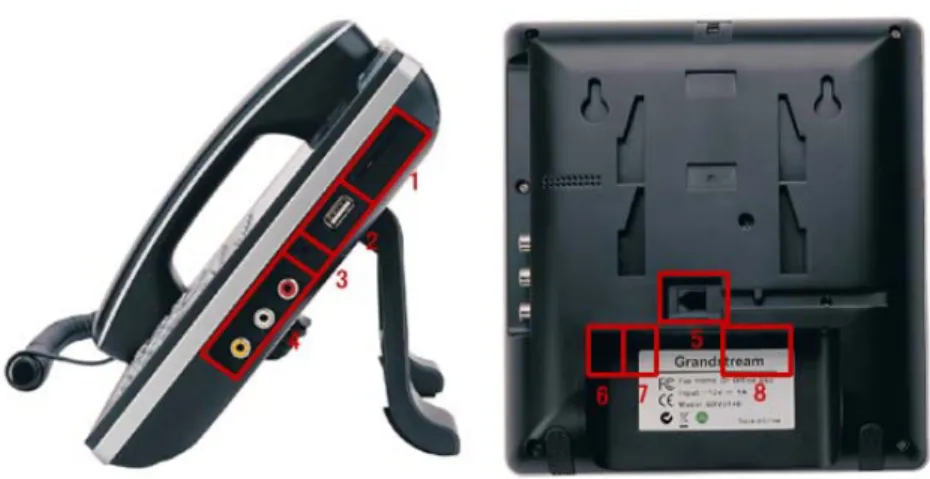
The GXV3140 can be mounted on the wall; there are two openings on the back of the phone for wall mounting. The GXV3140 has two positions for the stand on the back of the phone; each position supports a different angle.
USING THE GXV3140 IP MULTIMEDIA PHONE LCD
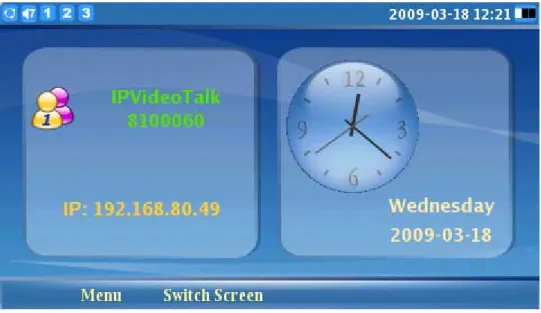
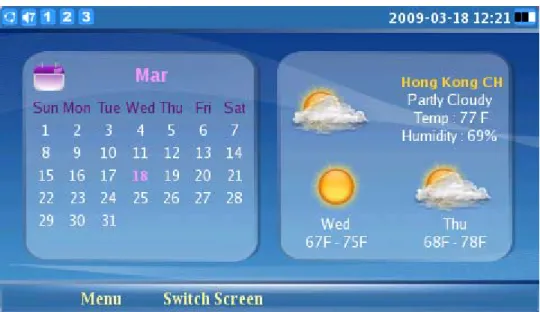
GXV3140 USER MANUAL www.grandstream.com Press F2 again to go to a screen showing the calendar and weather forecast. Internet radio The icon is displayed on the right side of the status bar.

MULTIPLE SIP ACCOUNTS AND LINES
HANDSET, SPEAKER AND HEADSET MODE
MAKING A CALL
On-hook Dialing
Without lifting the receiver, simply enter the number and press F3 to SEND.
DURING CALLS
If the user enters the wrong number and wants to cancel the transfer, just press "PHONE TRANSFER". After placing the call, press the CONFERENCE button and then select the waiting line to join three parties.
CALL FEATURES
GXV3140 WEB CONFIGURATION INTERFACE
The computer with Internet access must be connected to the same subnetwork as the phone. You can easily do this by connecting the computer to the same hub or switch to which the telephone is connected.
DEFINITIONS
The default admin login name is "admin", the default admin password is set to "admin.". The default login name for end users is "user" while the default user password is set to "123.". Otherwise the video quality will be damaged due to packet loss. Video Packet Size The default value is 1400, it ranges from 100 to 1400.
If configured, only the firmware with the matching encrypted prefix will be downloaded and flashed into the phone. If configured, only the firmware with its associated encoded postfix is downloaded and flashed into the phone. If configured, only the configuration file with the matching encrypted prefix is downloaded and flashed into the phone.
If configured, only the configuration file with the matching encrypted postfix will be downloaded and flashed to the phone.
SIP ACCOUNT CONFIGURATION PAGE DEFINITIONS
If "NAT Traversal(STUN)" is configured to be "No, but keep-alive", the phone sends an empty SDP packet (without payload data) to the SIP server once every 20 seconds to keep the NAT port open. SIP Registration Selects whether the GXV3140 will send a SIP Register message to the proxy. The default setting is YES. The default value is 50 minutes; the maximum value is 65535 minutes (about 45 days) and the minimum value is 5 minutes.
If set to YES, the phone will send a small number of VAD packets (instead of sound packets) when no sound is detected. For end users, it is recommended to use the default setting, as incorrect settings may affect the sound quality. Rejection The default setting is NO;If set to YES, any anonymous call will be rejected (with 486Busy message).
Special Feature The default setting is Standard; different features can be selected depending on the user's needs.
SAVING THE CONFIGURATION CHANGES
REMOTE REBOOT
CONFIGURATION THROUGH A CENTRAL SERVER
LCD MENU AND FEATURES
PHONE BOOK FEATURES
GXV3140 USER MANUAL www.grandstream.com As shown in the image above, each contact contains an extension number, phone number, mobile number, fax number and the group it belongs to. At the bottom right you will see that the total capacity of the phone book is 500 contacts, as well as the number of contacts in use. The user can call the contact by pressing F1, and can search for a contact by pressing F2.
When searching, the user must enter the username to search and press OK to confirm. As shown in the figure above, Select "New" to add a new contact; Select "Edit" to edit an existing entry. After it's set up, select the "Download" button next to "Download Now" to start downloading.
Note: If the user is downloading from a local server, make sure the TFTP/HTTP settings are correct.
CALL HISTORY
To complete downloading the directory from the server, users need to configure the download method and URL/IP address of the download server. GXV3140 USER MANUAL www.grandstream.com to view and manage all calls (outgoing, received and missed). As shown in the image above, each user can choose to call, save or delete the call record.
The Call option allows you to redial or dial out the number.
MESSAGES
When the user presses F3 to select “Options”, the user can call the sender's number, save the sender's number, or delete the message(s). As shown in the image above, users can choose to “reply,” “forward,” or “delete” the message. The Call Features menu allows the user to configure call forwarding methods (unconditional forward, busy forward, no answer forward) and other features such as auto answer, call waiting, and do not disturb.
GXV3140 USER MANUAL www.grandstream.com After the settings are configured, select "Save" to save and activate the settings.
WEB BROWSER
GXV3140 USER MANUAL www.grandstream.com When the web browser has finished loading, a default page will display "Hello, Welcome to GXV3140". Users can then press F4, which corresponds to the "Options", to move "Forward" and "Back" on web pages. The user can press the F3 button corresponding to the Tab option to toggle the curser.
MULTIMEDIA
As shown in the image above, users can then press the F1 button to adjust the volume. GXV3140 USER MANUAL www.grandstream.com In addition, users can configure "My Favorites" by pressing the F2 button for "Control". GXV3140 USER MANUAL www.grandstream.com As shown in the image above, press F1 to adjust the volume of the media player (navigate using the up and down buttons).
GXV3140 USER MANUAL www.grandstream.com Press the OK button or F1 to select the photo viewer. Press F3 for "Options", Users can also Zoom the picture, Rotate (Clockwise, Counterclockwise), Flip (Vertical Flip, Horizontal Flip) the picture as well as display the pictures in a slide show. The user can then select the music style they prefer from the list of available music styles.
GXV3140 USER MANUAL www.grandstream.com Press F1 to adjust volume (see figure above) and press F3 for "Settings".
OFFICE TOOLS
As seen in the figure above, users can press F1 to "Add New Event", where events such as birthdays can be added to the calendar. The GXV3140 also includes a Weather Updates app that provides users with the most up-to-date weather forecast information. The GXV3140 offers a file manager as a tool to manage files such as music, pictures and documents.
As shown in the figure below, users can access different folders to manage their files. GXV3140 USER MANUAL www.grandstream.com The GXV3140 includes a Stock Market monitoring application that conveniently retrieves current information regarding the stock market. As shown in the figure above, the users can use the “Add Inventory” option by pressing F1.
Users can refresh the content by pressing F2 for "Refresh" and press F3 for "Options" to clear or delete all stocks.
SETTINGS
GXV3140 USER MANUAL www.grandstream.com On the "Other" page, users can choose to set the Preferred DNS server priority value, Layer 3 QoS, Layer 2 802.1Q/VLAN tag QoS, and the value of QoS layer 2 priority. GXV3140 USER MANUAL www.grandstream.com This screen allows the user to adjust the LCD backlight brightness, LCD contrast and LCD saturation. Please make sure you have connected the external output source before selecting this option.
Users can configure the upgrade mode and firmware server IP address/URL on the upgrade tab. A more detailed step-by-step guide will be provided in the "Factory Reset" section that follows. The Factory Features page provides some test diagnostics for the LCD, camera and audio on the GXV3140.
The Debug page (as shown in the figure below) contains the built-in debug tools for the GXV3140.
PERSONALIZE
Users can choose between Small Layout, Big Layout or Custom Layout (by uploading an XML file) by toggling between the left and right buttons. Users can define the soft/function key functions on the main screen and the call screen. There are several softkey functions that the user can select for the 4 function keys.
Note: If you select the "Snapshot" option for one of the call screen softkey functions, you can take a snapshot of the external party during the call. GXV3140 USER MANUAL www.grandstream.com The interval and timeout period can also be specified here. Users can download the corresponding language file from the TFTP/HTTP server to extend to the language selection menu.
This screen allows users to configure the alarm tone and event alert tone for the GXV3140.
INFO
GXV3140 USER MANUAL www.grandstream.com System information such as product model, hardware version, part number, system uptime and software version are displayed here. GXV3140 USER MANUAL www.grandstream.com The number and the status of the three SIP accounts can be viewed here.
SOFTWARE VERSION UPGRADE
UPGRADE VIA KEYPAD MENU
UPGRADE VIA WEB BROWSER CONFIGURATION PAGE
NO LOCAL TFTP SERVERS
Extract the firmware files and place them all in the root directory of the TFTP server. Connect the computer with the TFTP server and the GXV3140 device to the same LAN segment. Start the TFTP server and go to the File menu -> Configure -> Security to change the TFTP server's default setting from "Receive Only" to "Transmit Only" for the firmware upgrade.
Start the TFTP server and configure the TFTP server in the web configuration interface of the phone. End users can also choose to download a free HTTP server from http://httpd.apache.org/ or use a Microsoft IIS web server. Note: When the GXV3140 starts up, it will send a TFTP or HTTP request to download the configuration file cfgxxxxxxxxxxxx” (“xxxxxxxxxxxx” is the MAC address of the phone).
If this is a normal TFTP or HTTP upgrade, the following messages will appear "TFTP error from [IP ADDRESS] request cfg000b82023dd4 : File does not exist.
CONFIGURATION FILE DOWNLOAD
RESTORE FACTORY DEFAULT SETTINGS
RESTORE TO FACTORY DEFAULT SETTINGS VIA LCD MENU
On the Upgrade tab, press down arrow twice to select factory reset. GXV3140 USER MANUAL www.grandstream.com Step 5: Press the OK button again to select "OK".
RESTORE TO FACTORY DEFAULT SETTINGS VIA THE WEB INTERFACE
GXV3140 USER MANUAL www.grandstream.com Step 2: Click the “Reset” button at the bottom of the page to restore factory settings.
EXPERIENCING THE GXV3140 MULTIMEDIA PHONE